Aligning Section Cuts with Shaded Render Modes
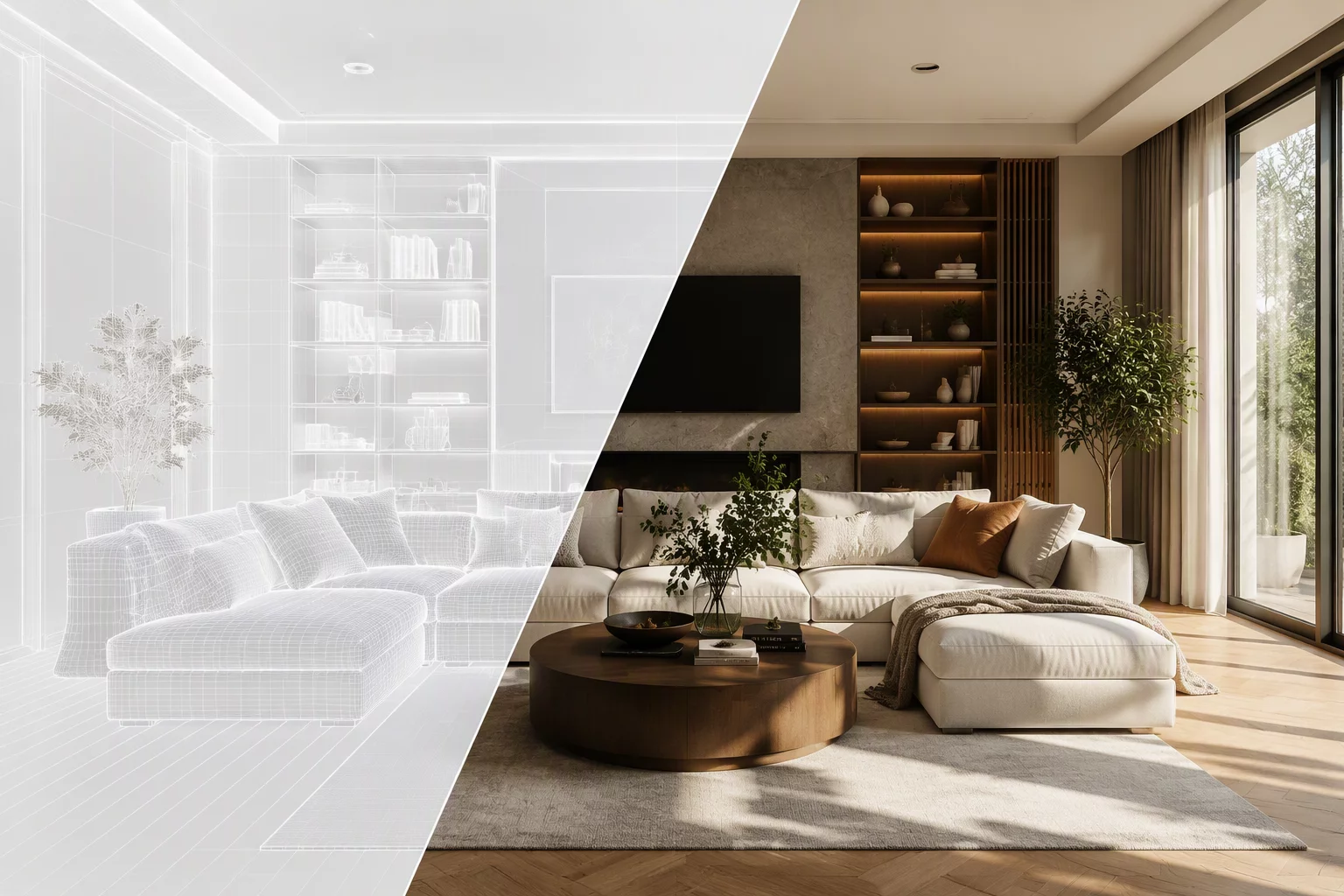
Sectional 3D views frequently lose clarity when rendered with uncalibrated lighting rigs or overly complex polygon textures. When working with the updated Clip Cube interface in Vectorworks, the geometric boundary establishes an immediate spatial slice through complex assemblies. The visual communication goal determines whether the viewport relies on a hidden-line foreground, artistic line sketch, or fully shaded artistic Renderworks style.
Balancing foreground vector linework against background surface fills ensures that structural envelopes remain readable while internal finishes supply depth context. Applying a dedicated render style directly to the active clip cube boundaries allows drafters to isolate technical spatial volumes without creating duplicate geometry or bogging down navigation speed.
Essential Render & Clip Cube Protocols
-
1
Hybrid Render Strategy: Always pair a Shaded or custom Renderworks background style with a Hidden Line foreground render to maintain crisp edge definition along cut geometry.
-
2
Cut Plane Override: Assign a solid hatch or dark color fill to intersecting clip cube faces to immediately distinguish solid core components from empty spatial voids.
-
3
Lighting Attenuation: Deactivate global ambient light bounce inside tight interior slices to avoid washed-out contrast across recessed fixtures and joinery.
-
4
Viewport Geometry Isolation: Convert active clip cubes into dedicated design layer section viewports to lock coordinate bounds and freeze live geometry during updates.
"A clip cube should never serve merely as a visual framing tool; it is an active architectural filter that isolates specific assemblies while stripping away peripheral distraction."
Practical Configuration in Sheet Layer Workflows
Implementing clip cubes on sheet layers starts by defining the bounding cube in design layers before executing the viewport generation command. In Vectorworks, opening the Object Info Palette (OIP) reveals advanced render style overrides that apply solely to the target viewport. By utilizing tailored Render Styles, drafters can disable heavy displacement mapping and glossy reflections while retaining soft ambient occlusion.
For complex interior fit-outs or multi-tiered stair cores, combining depth cueing parameters with clip cube boundaries prevents distant objects from visually merging into the primary cut plane. This disciplined layer and class separation maintains swift redraw rates across busy sheet layouts and yields presentation-ready construction cuts without supplementary post-processing in graphic software.
Standardize Your Viewport Styles
Access comprehensive checklists, class mapping guides, and viewport intent templates designed specifically for Vectorworks drafters.
Frequently Asked Questions
Recommended Knowledge Articles
 Feature Preview
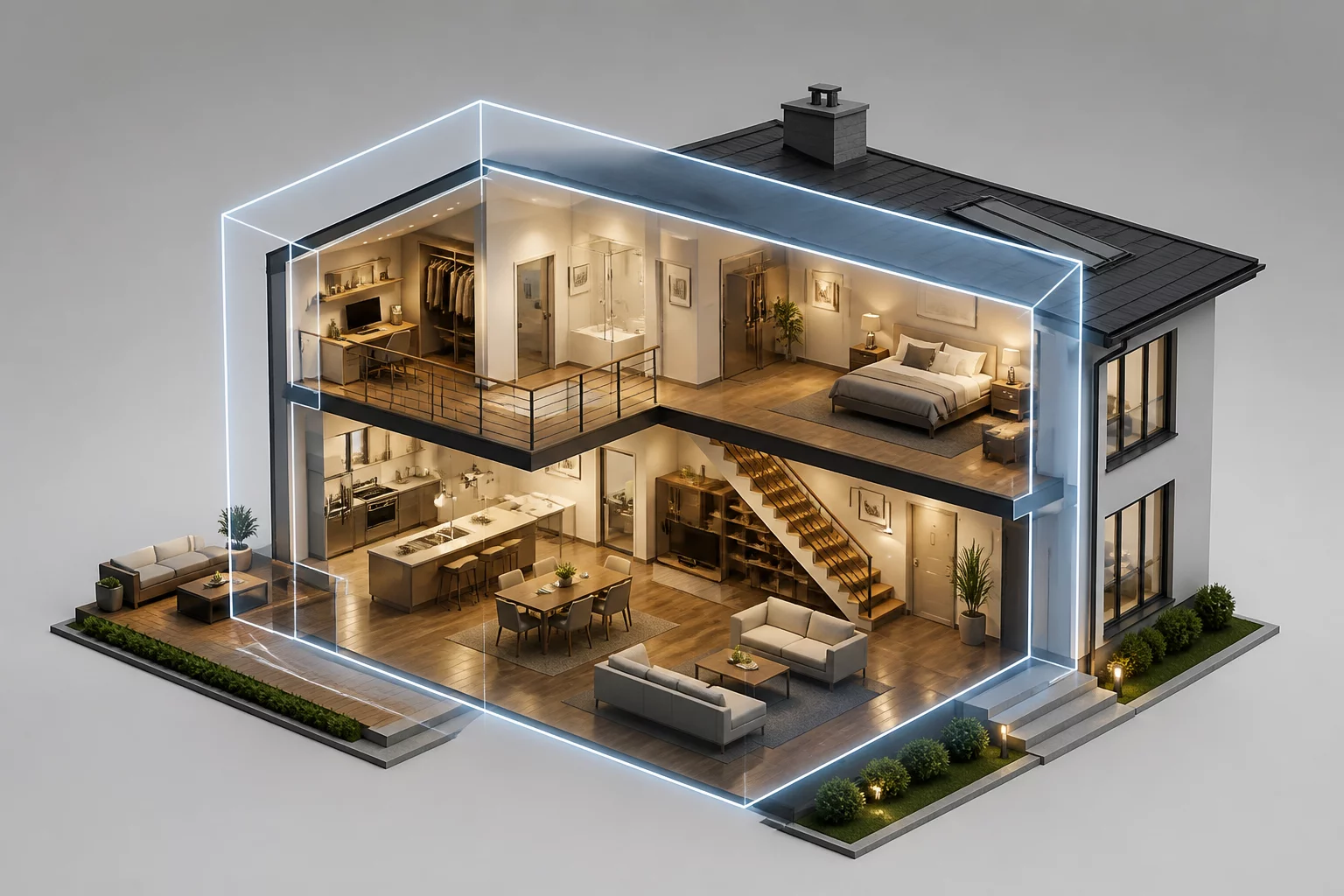
Clip Cube Viewport Option 2027
Explore how the 2027 viewport options streamline spatial coordination and section extraction.
 Drafting Technique
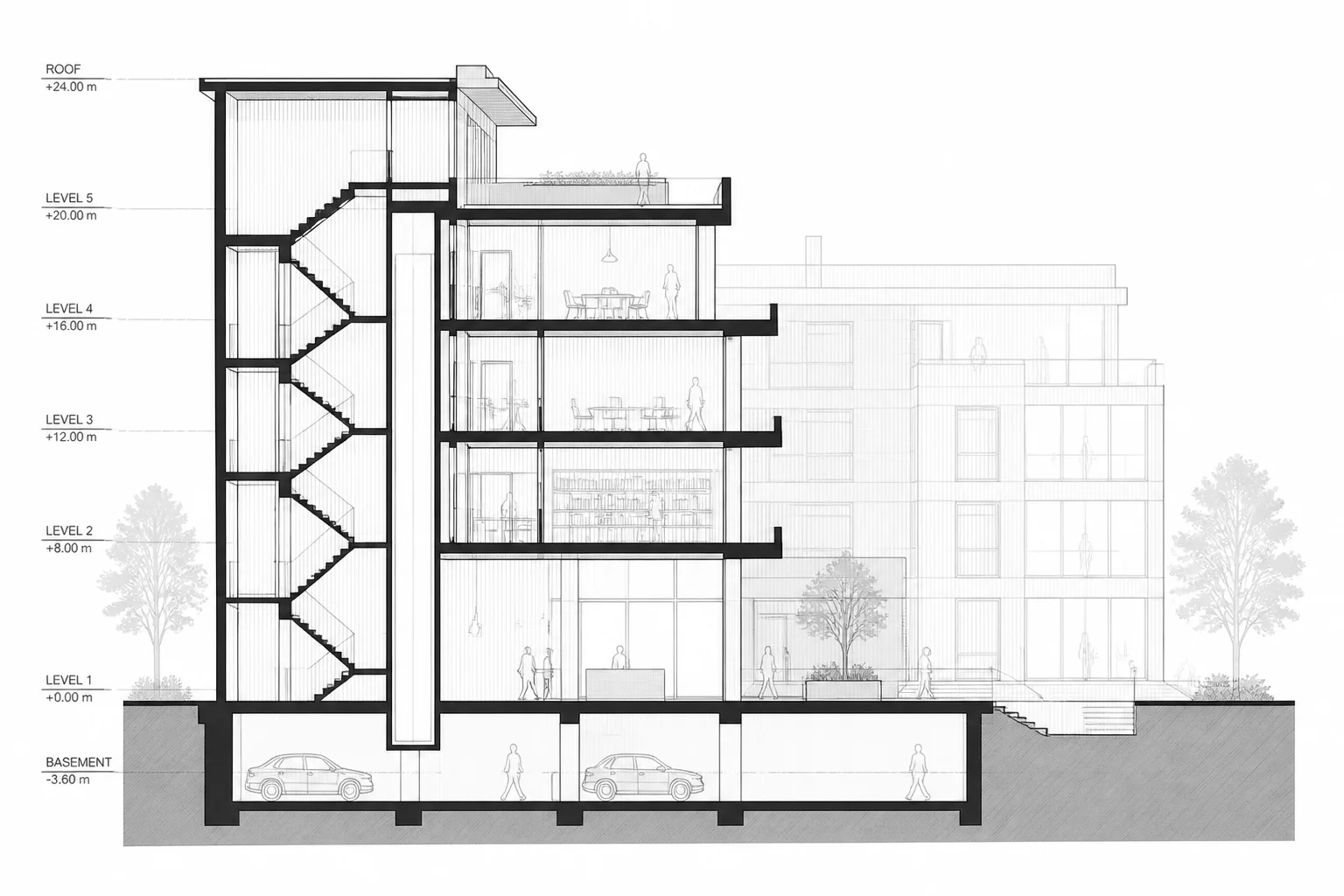
Depth Cueing in Section Viewports
Utilize atmospheric depth cueing to enhance readability across complex multi-layer sections.
 Core Setup
Sheet Layer Setup Basics
Fundamental setup principles for sheet layers to support clear architectural view intent.